Set up a device
Every tap, in order, with what the phone will show you, and the pairing code itself when you get to it. Around ten minutes. You need an Android phone and this page open on a computer.
How are you installing the app?
Adds the proxy tunnel, the spoofed location and in-app updates. Android asks more questions on the way in.
1. Install the app
This is the file from our own server rather than the Play Store version. Android asks you to confirm that twice, and neither question means anything is wrong with the download.
Type studio.mationx.com/download in the phone's browser
Use the phone itself, not the computer. The file has to land on the device that will run your automations.
Or point the phone's camera at this, which saves the typing.
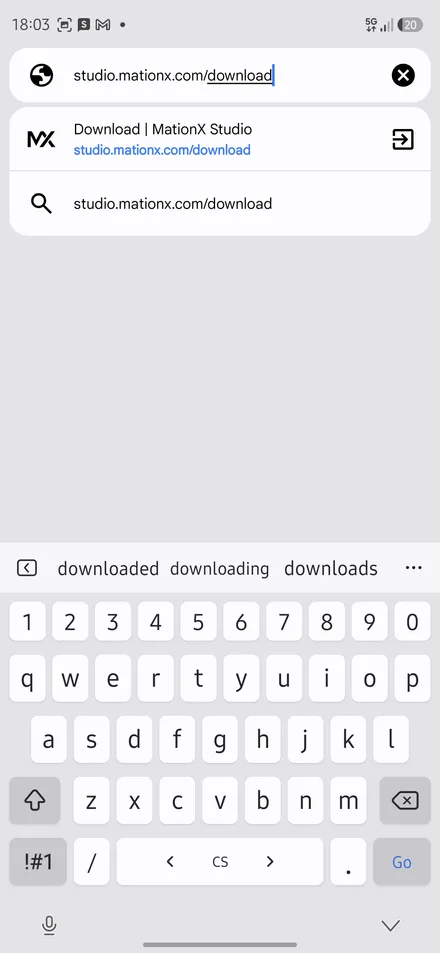
Tap Download APK
About 35 MB. The page will not change when it finishes.
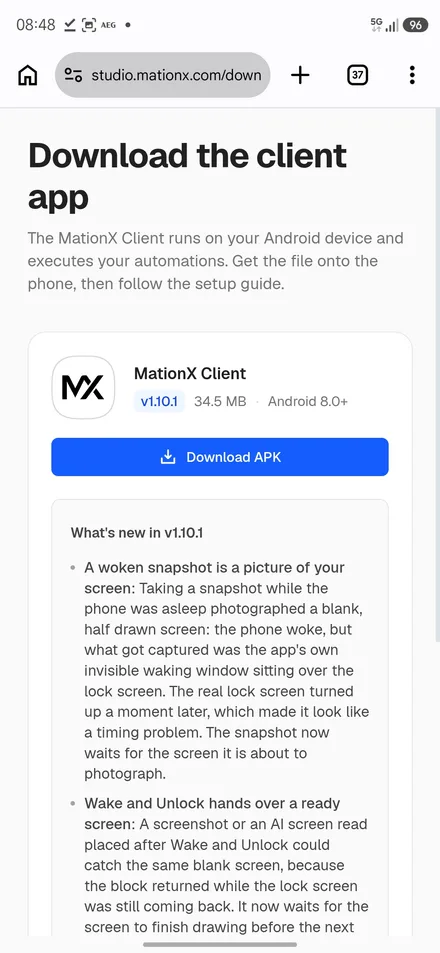
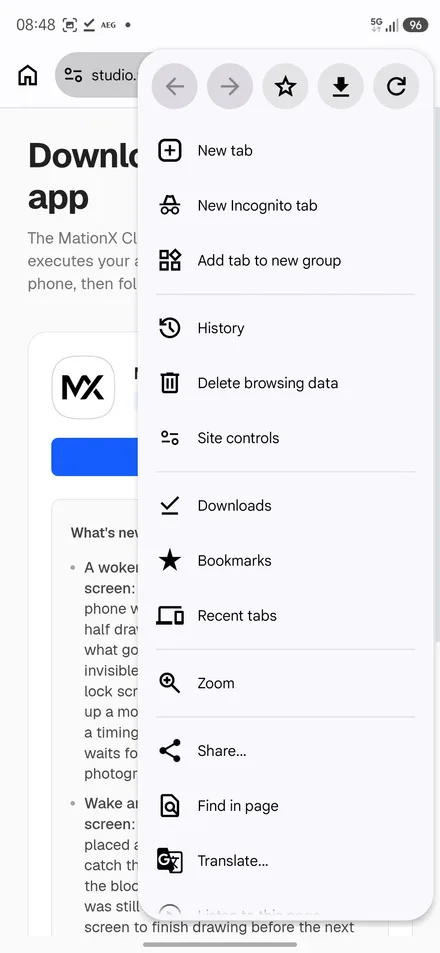
Tap the three dots at the top right
The browser keeps finished downloads in its own menu.
Tap Downloads
Roughly halfway down the menu.
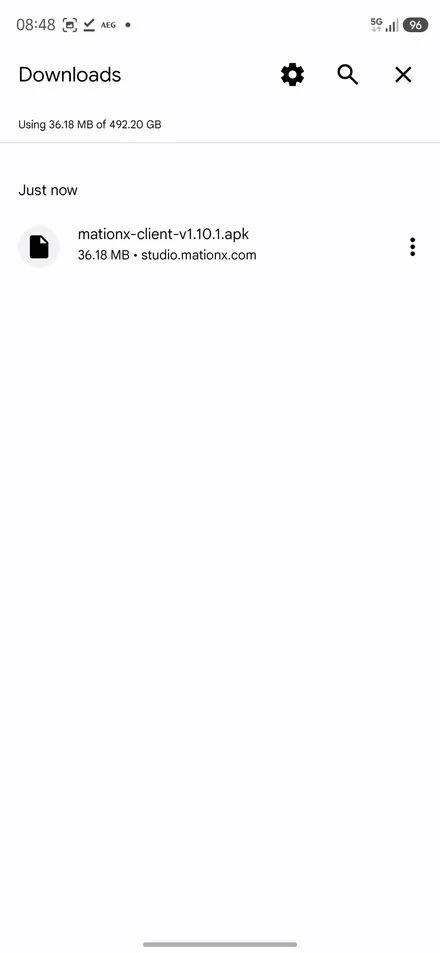
Tap mationx-client.apk
At the top of the list, under Just now.
Tap Install
Android asks before installing anything that did not come from the Play Store.
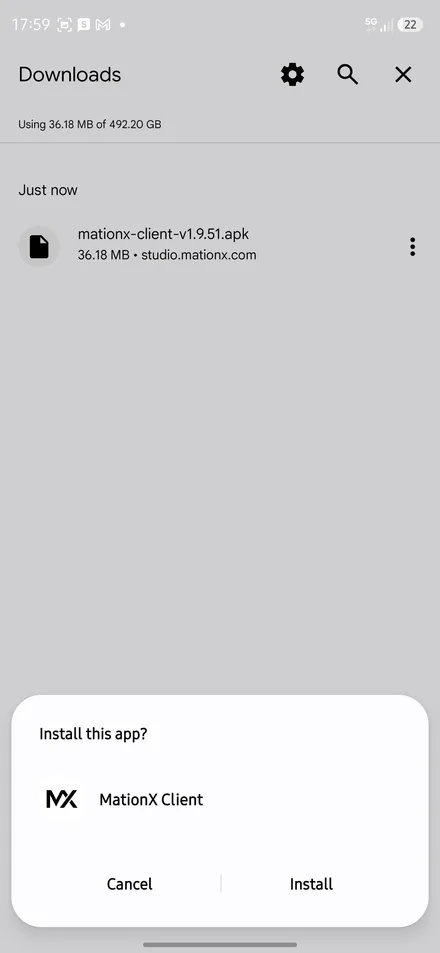
Tap More details
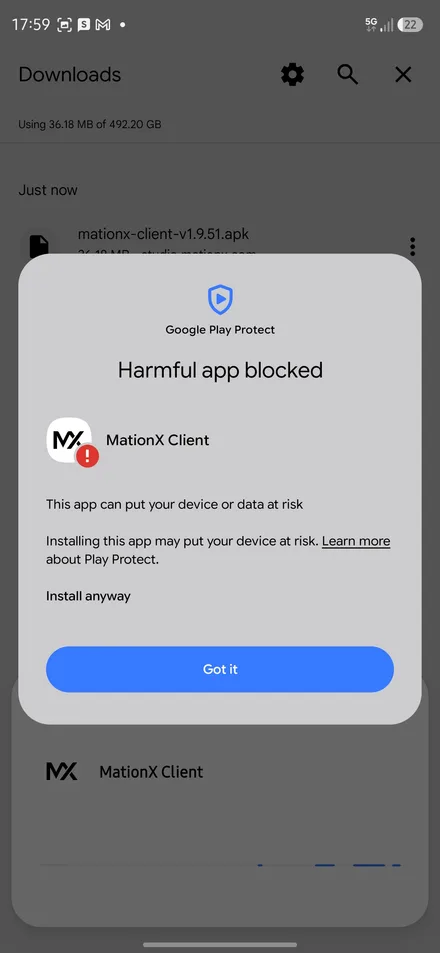
Play Protect blocks the install and calls the app harmful. MationX declares permissions Google restricts, such as reading SMS or reaching every file on the phone, because some blocks need them. Granting any of them is optional and the app only asks when you first use a block that needs one, but Play Protect judges the list, not what you allow. The Play Store version does not show this screen at all, so this file is worth the detour only if you need the proxy tunnel or a spoofed location.
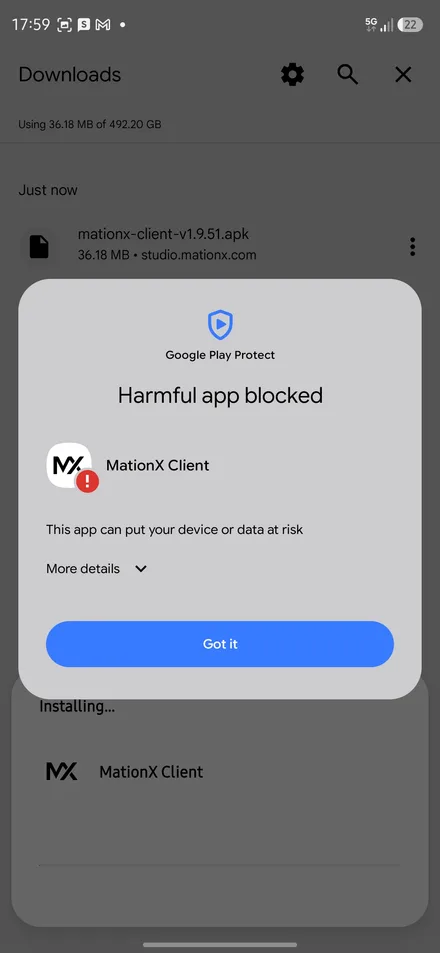
Tap Install anyway
It appears as plain text under the explanation rather than as a button.
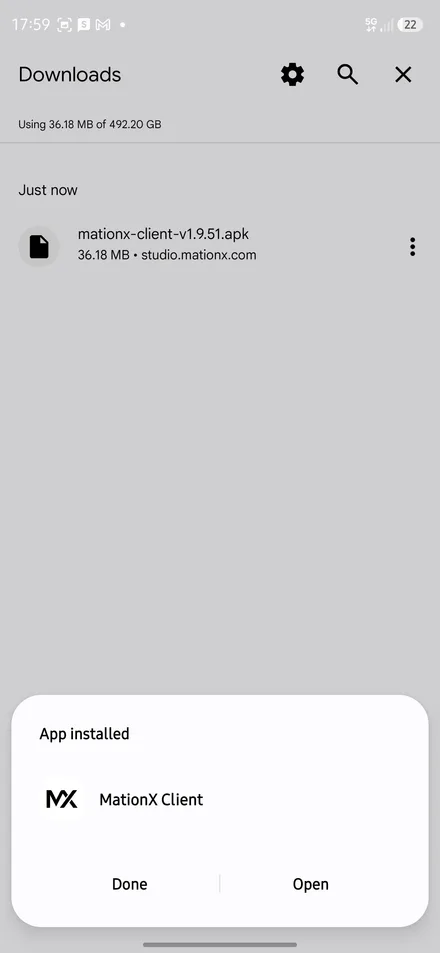
Tap Open
Opening it from here saves hunting for the icon.
2. Connect it to your account
This is the only part that needs the phone and the computer at the same time, so keep this page open while you do it.
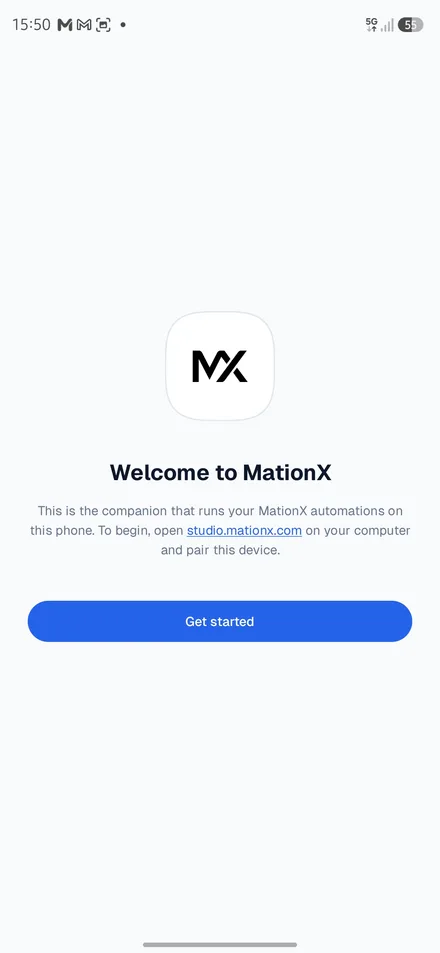
Tap Get started
This is the app that will run your automations on this phone.
The phone now asks for a code
Scan the code below with the app, or type the six digits into the phone.
Sign in on this computer and the code appears here.
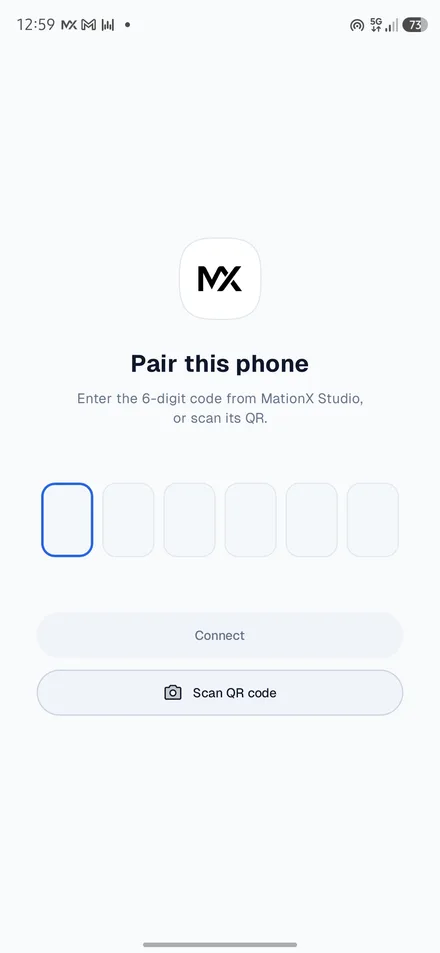
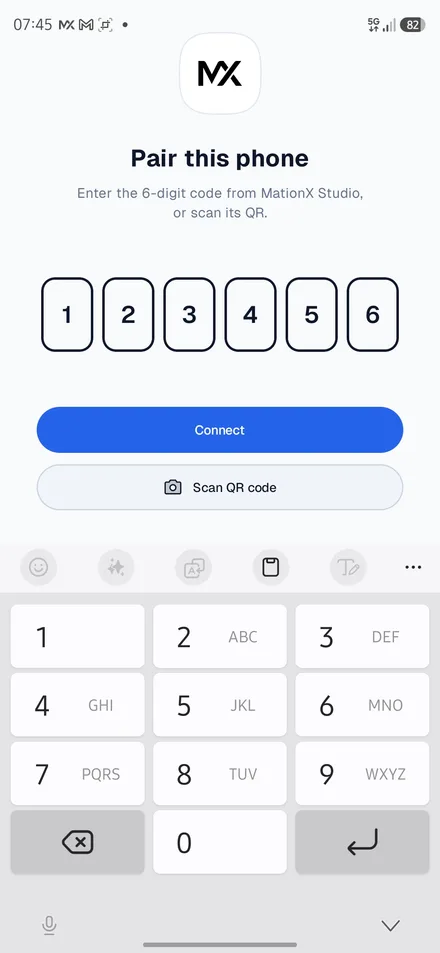
Type the code and tap Connect
Or tap Scan QR code and point the phone at the code above, which saves the typing.
3. Turn on Accessibility
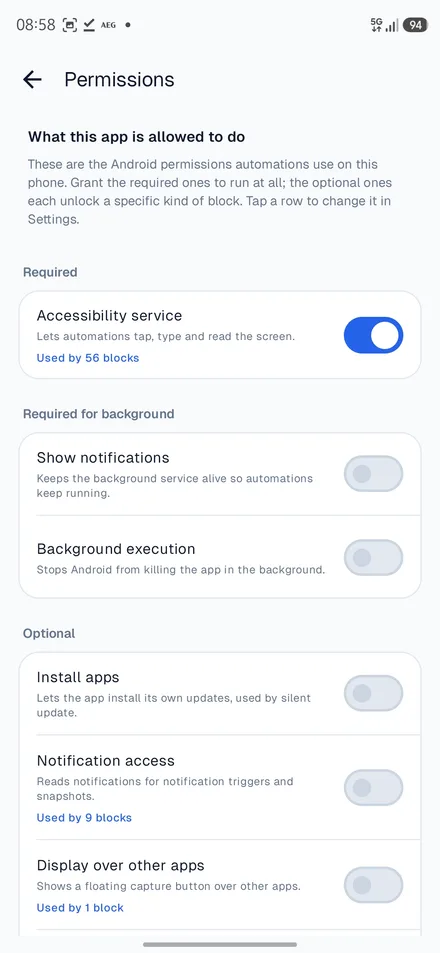
The phone is connected but cannot do anything yet. This is the permission that lets an automation tap and read the screen, and on Android 13 and newer it takes a detour.
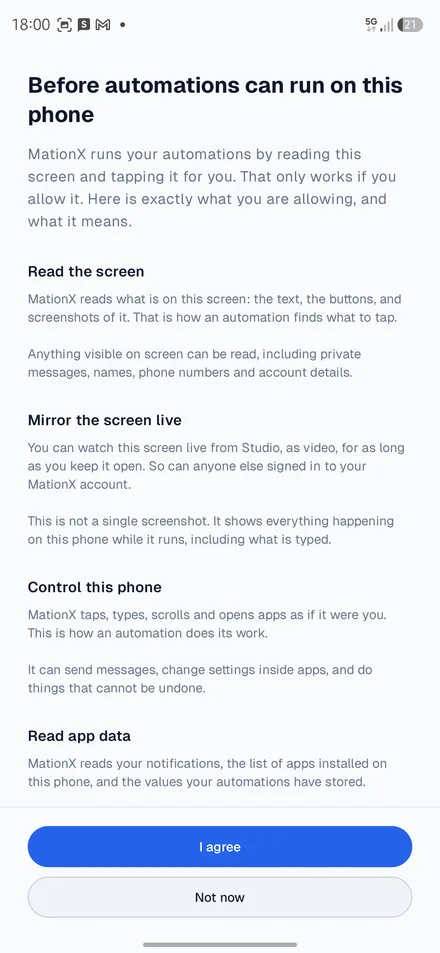
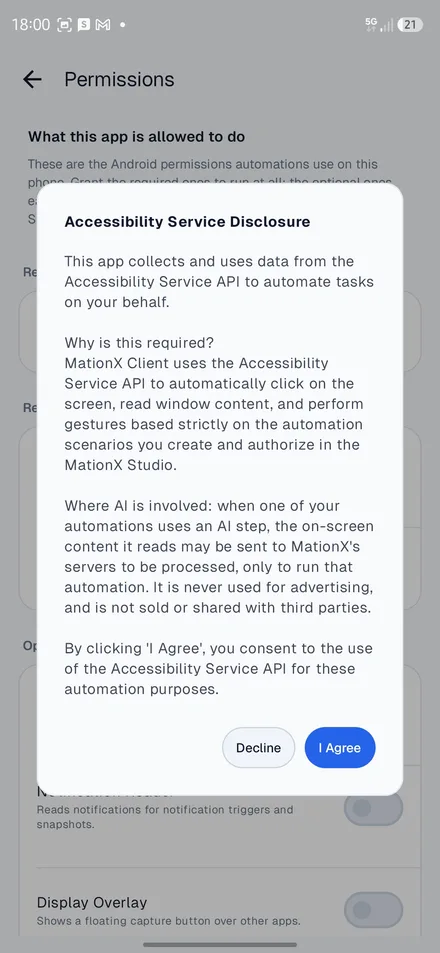
Read what you are allowing, then tap I agree
Worth reading once. It is the plain English version of what MationX will be able to see and do on this phone while an automation runs.
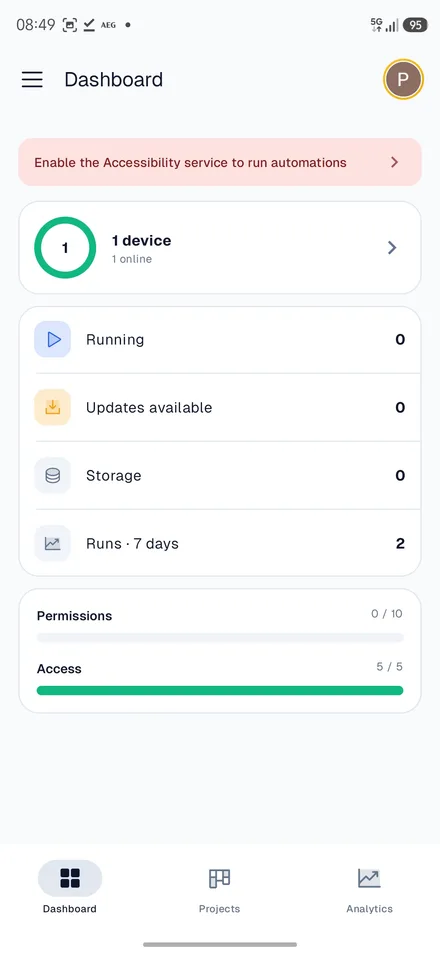
Tap the red banner
Enable Accessibility to run automations. Nothing else in the app works until this is done.
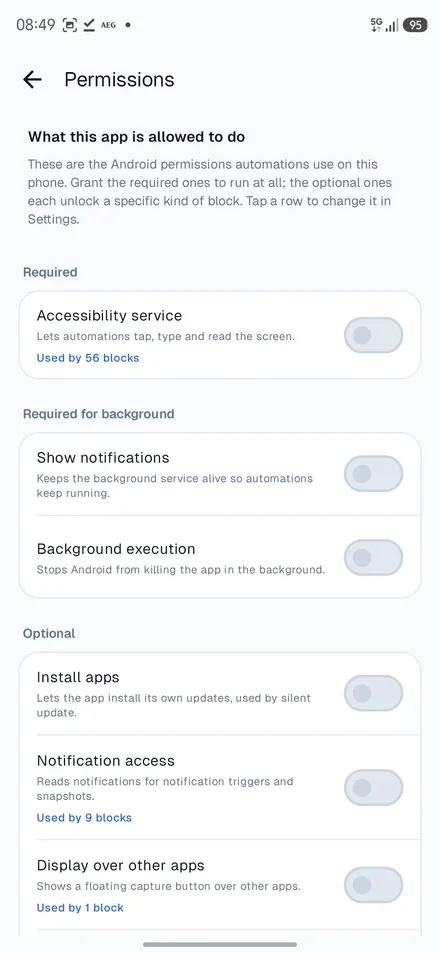
Tap the Accessibility service switch
The first row under Required. The rest of the list can wait.
Tap I Agree
Google requires this wording before an app may ask for the permission at all.
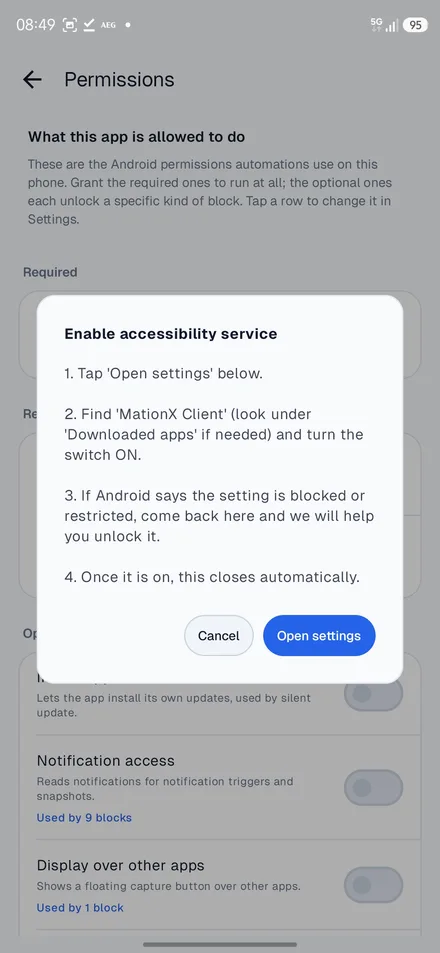
Tap Open settings
MationX cannot flip this switch itself. Only Android can, in its own settings.
Tap Installed apps
MationX is in there, not under any of the categories above it.
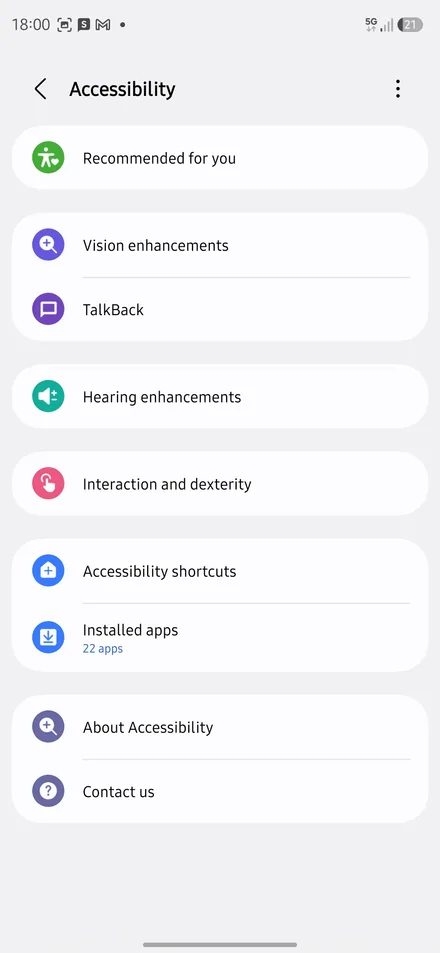
Tap MationX Client even though it looks disabled
It reads Controlled by Restricted Setting and the switch does nothing. Tap the row anyway. This step matters more than it looks.
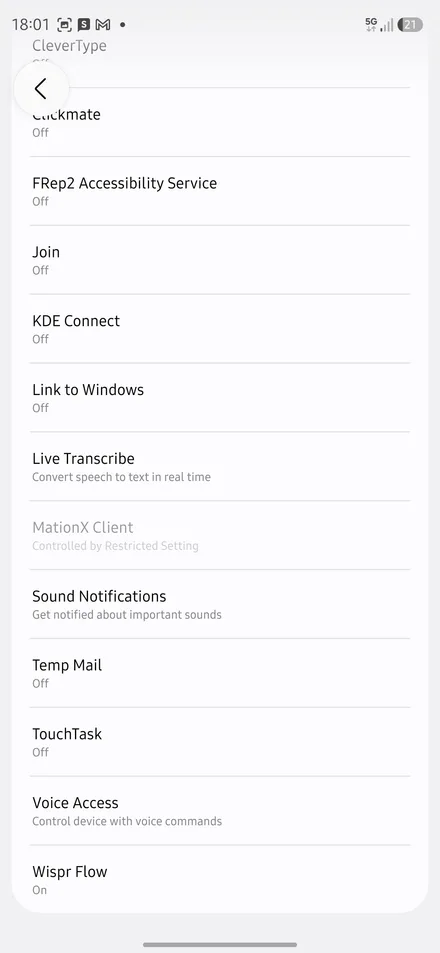
Tap Close
The dialog says the same thing again and has nothing you can act on. Closing it is what registers the attempt.
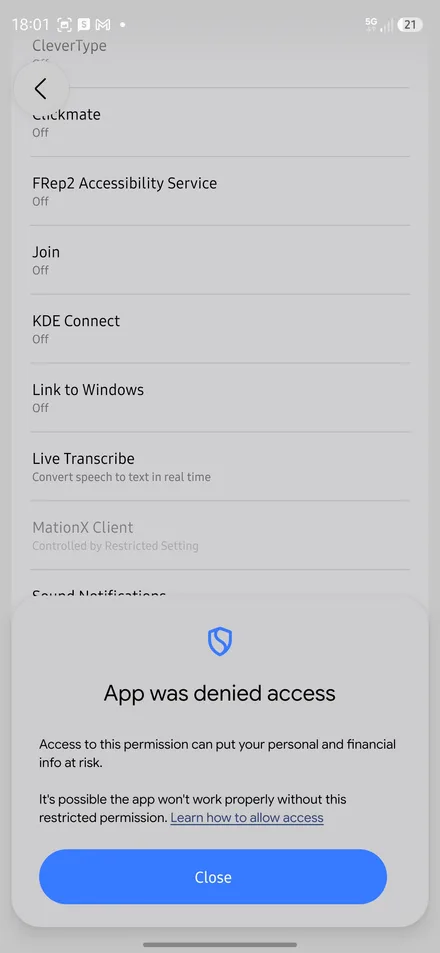
4. Unlock the restricted setting
Android 13 and newer will not let an app installed from a file hold this permission until you allow it in a second place. This is that place, and then the same screens again, working this time.
Tap Open app settings
Back in MationX. It noticed the switch never flipped.
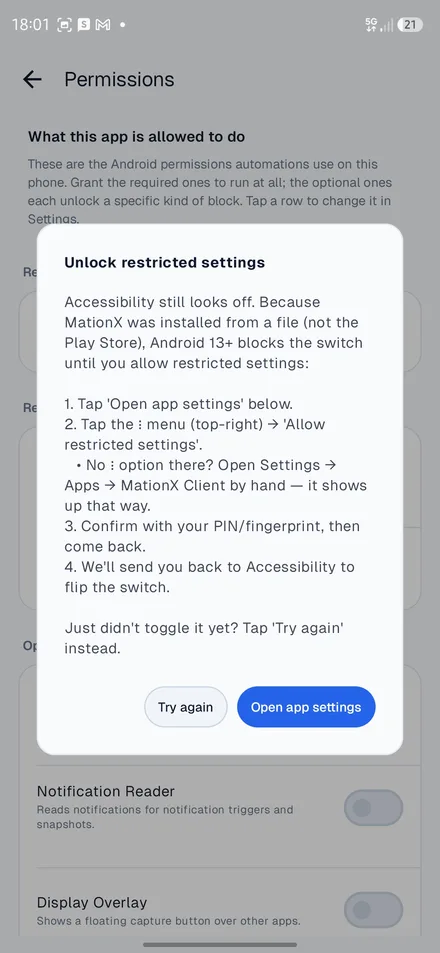
Tap the three dots at the top right
Nothing on the App info page itself is what you want.
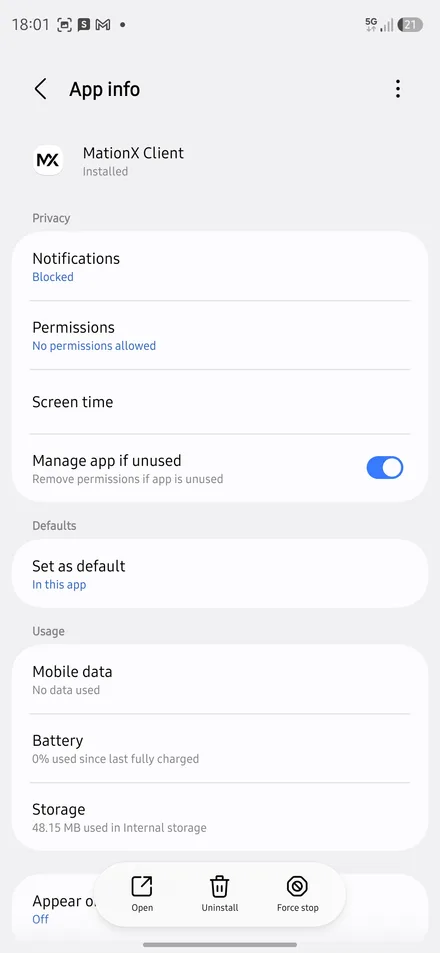
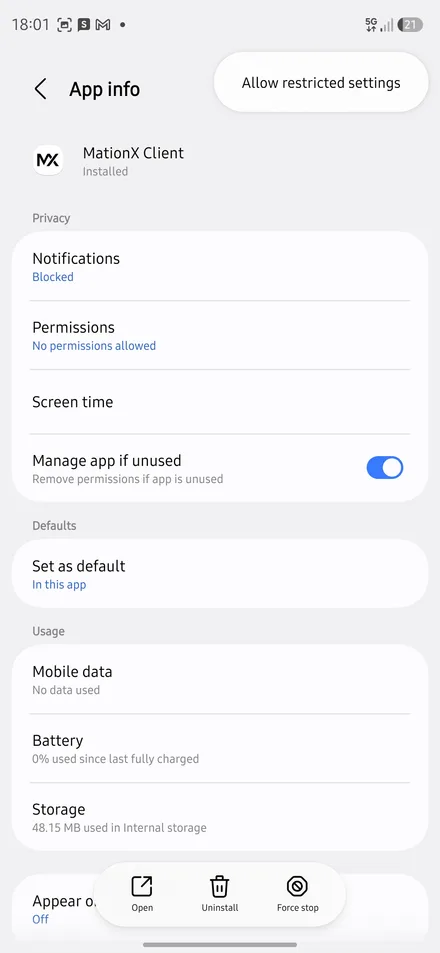
Tap Allow restricted settings
The only item in the menu. The phone may ask for your PIN, pattern or fingerprint first.
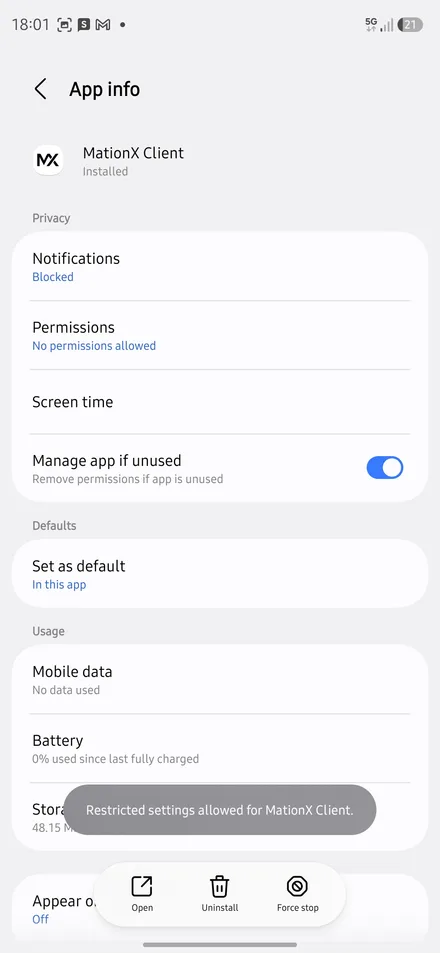
Watch for the confirmation
Restricted settings allowed for MationX Client appears low on the screen and disappears after a couple of seconds. Nothing else on this page changes, so go back to MationX.
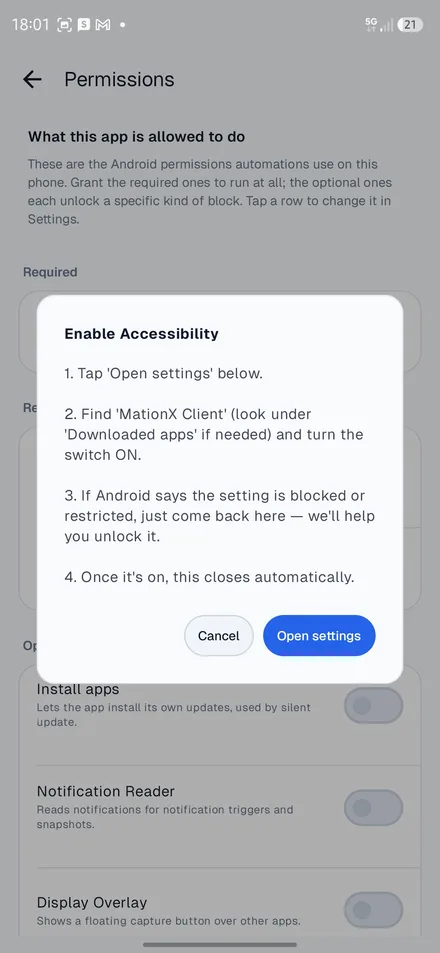
Tap Open settings
The same dialog as before. Everything works properly from here.
Tap Installed apps
You have been here. The next screen is the one that changed.
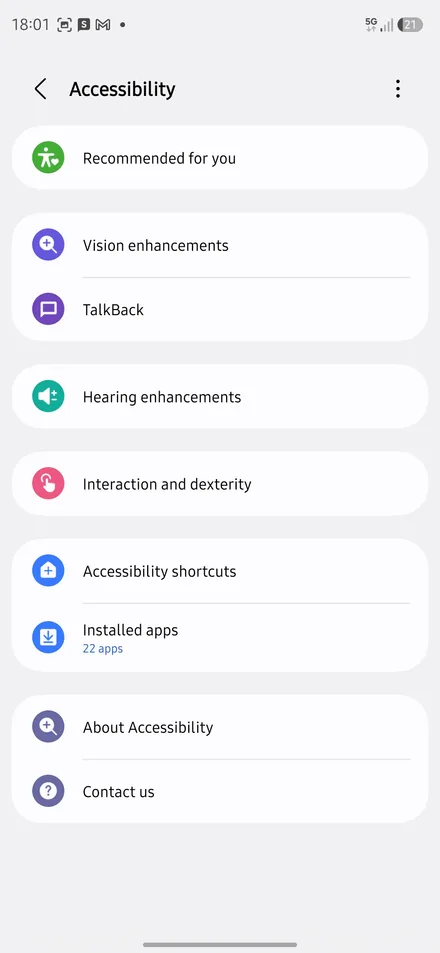
Tap MationX Client
It now reads Off instead of Controlled by Restricted Setting. That one word is the whole point of the last six steps.
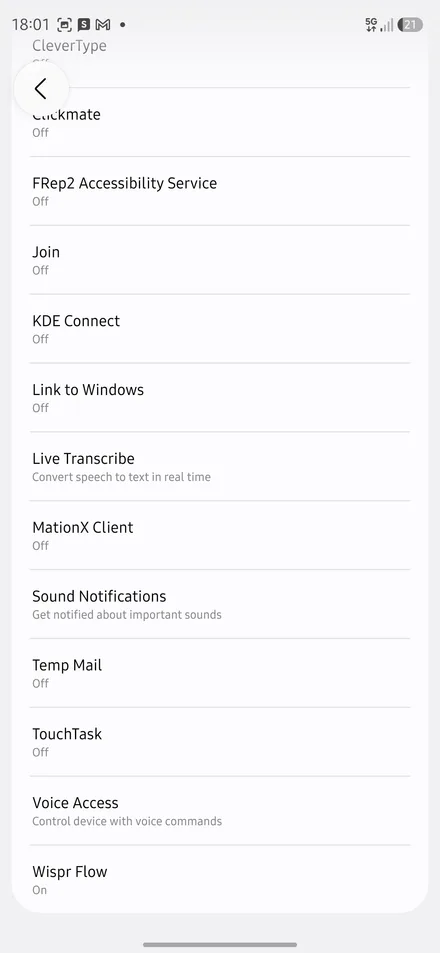
Tap the switch
The big one at the top.
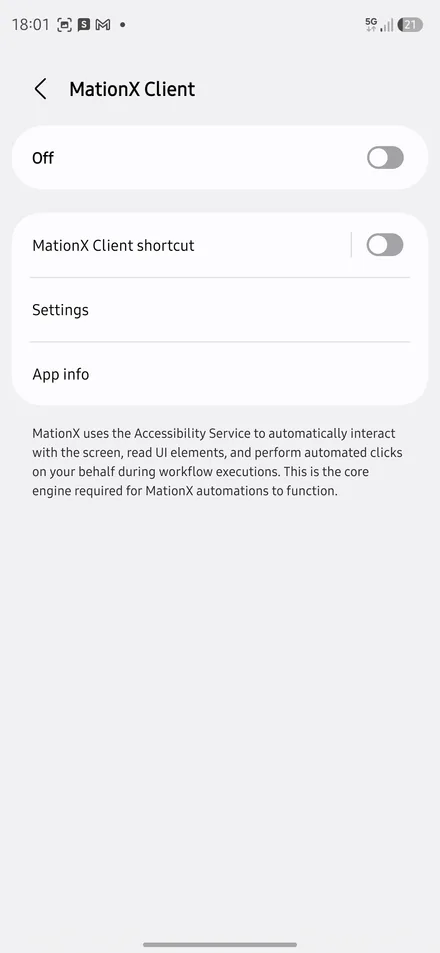
Tap Allow
Full control is Android's wording, written for screen readers, which is what this permission was built for. It is the same thing you agreed to earlier: MationX can see the screen and tap it.
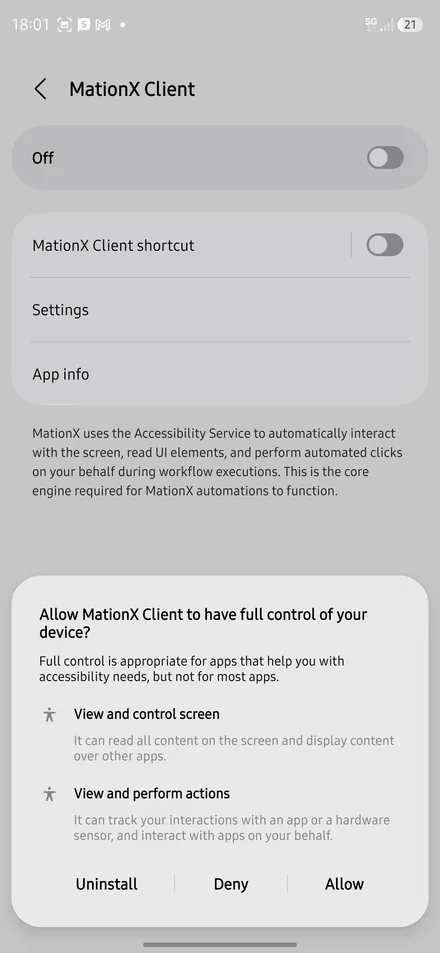
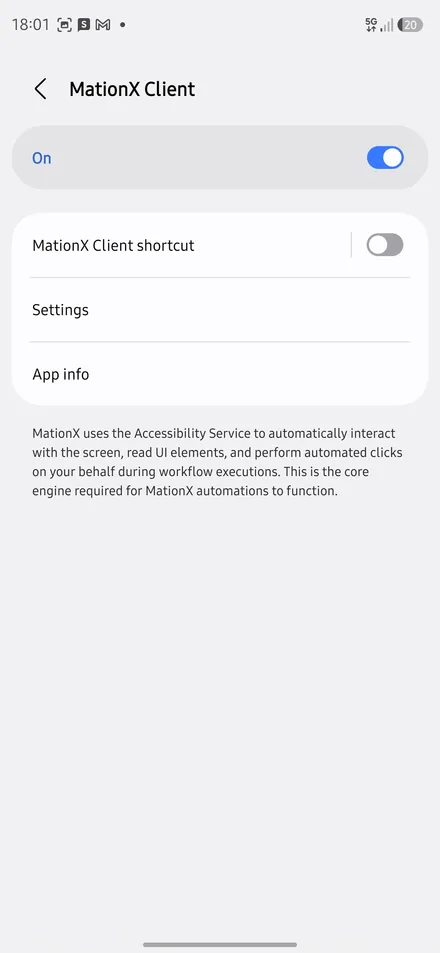
Check it says On, then go back
Two taps of the back arrow returns you to MationX.
5. Keep it running when you are not watching
Android stops apps it thinks are idle. Without these two, automations run while you are looking at the phone and quietly stop when the screen goes off.
Tap Show notifications
Accessibility is on and the red banner is gone. The two rows under it are the difference between a phone that runs what you start by hand and one that keeps working on its own.
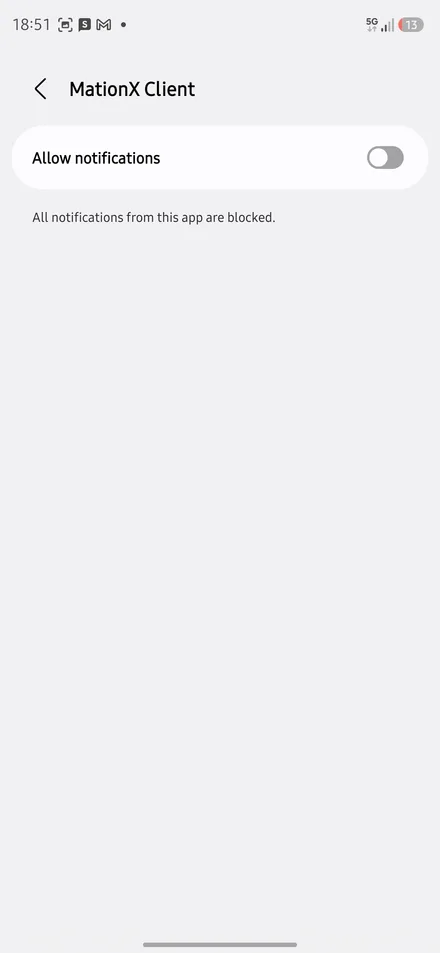
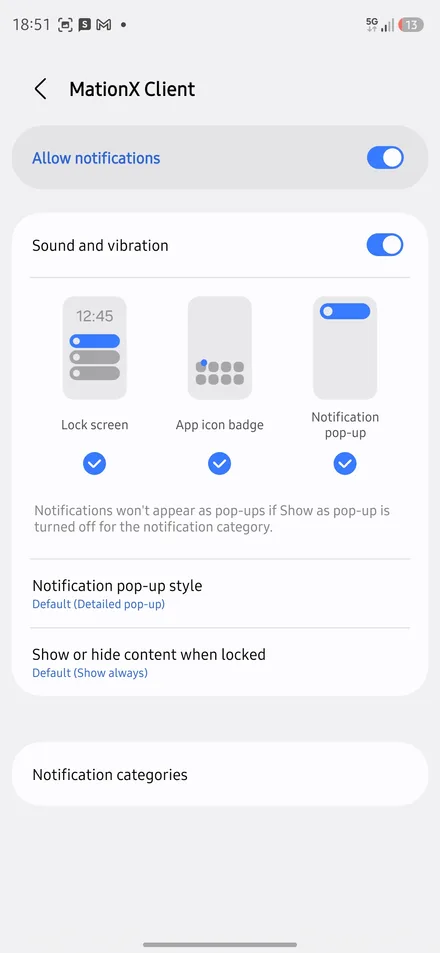
Turn on Allow notifications
This is not about pinging you. Android only keeps a background service alive if it can show a notification saying it is running, so this switch is what buys the service the right to exist.
Go back to MationX
Everything underneath can stay as it is.
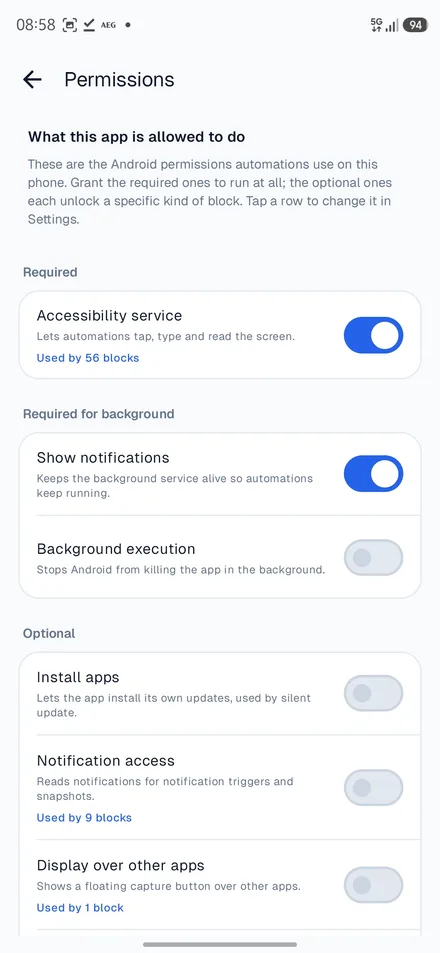
Tap the Background execution switch
Show notifications has gone blue. The last one is directly under it.
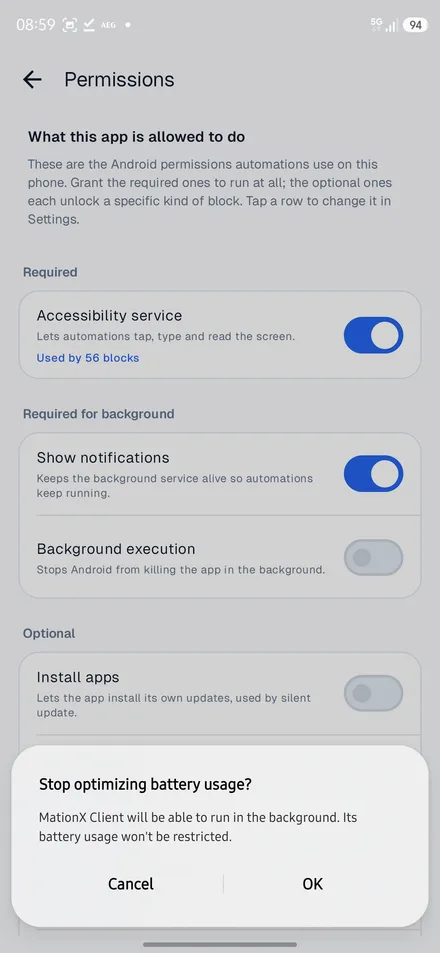
Tap OK
Stop optimizing battery usage is Android asking whether to stop killing this app to save power. For an app whose job is to keep running, yes.
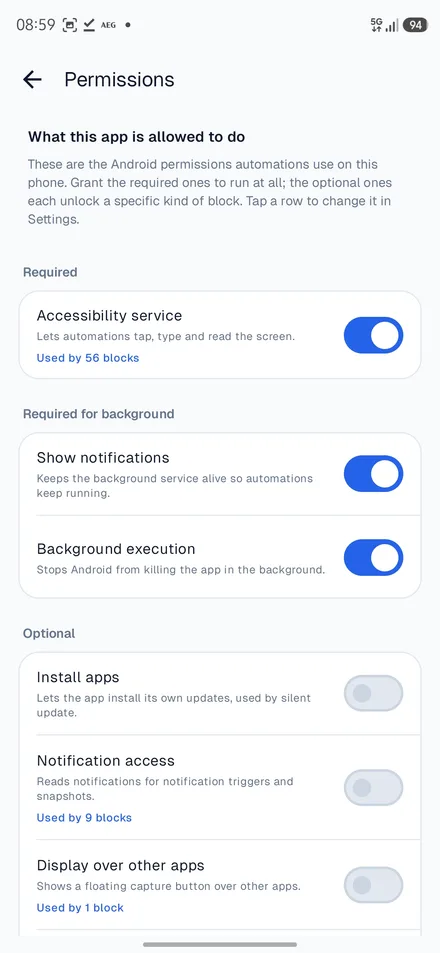
That is everything
All three required permissions are on. The phone is paired, it can run automations, and it keeps running them with the screen off.
Everything under Optional can wait. Each one unlocks a particular kind of block, and the app asks when you first use a block that needs it.
Stuck on a step?
Tell us the number of the step and what the phone did instead. That is usually enough to answer in one message.